TABLE OF CONTENTS
Introduction to Keywords
By assigning keywords to appraisal form sections or questions, you can target specific content to specific employee groups. For example, managers can be presented with leadership-focused questions, while technical employees may receive role-specific competency questions. This helps ensure that employees are assessed against criteria that are relevant to their responsibilities and career level.
Keywords are optional, but when used effectively they provide a more personalised appraisal process, improve the quality of feedback collected, and help organisations ensure that appraisals remain meaningful across different roles and employee levels.
Benefits of using keywords:
- Create bespoke appraisal forms for different employee groups.
- Display role-specific or level-specific questions.
- Improve the relevance of performance discussions.
- Reduce unnecessary questions for employees.
- Maintain a single appraisal process while supporting multiple job types and levels.
Without keywords, all employees will see the same appraisal content. With keywords, you can deliver a more targeted and effective appraisal experience.
There are a number of keyword types that you can create to use within the system. These are as follows:
| Employee Level | Pulled onto the employee's profile. |
| Employee Type | Pulled onto the employee profile. |
| Competency Name | Can add competency names to be used in appraisal forms. |
| Competency Type | Used to define the type of competency expectations, such as Core/ Foundational Competencies e.g., Teamwork, communication and problem solving. |
| Mid Year Review Type | Used to create interim reviews that can be used throughout the leave year, such as One-to-One's and Probation Reviews. |
| Objective Category | Used to define the distinct types of measurable, data-driven targets used to evaluate employee or team performance. |
Creating Keywords
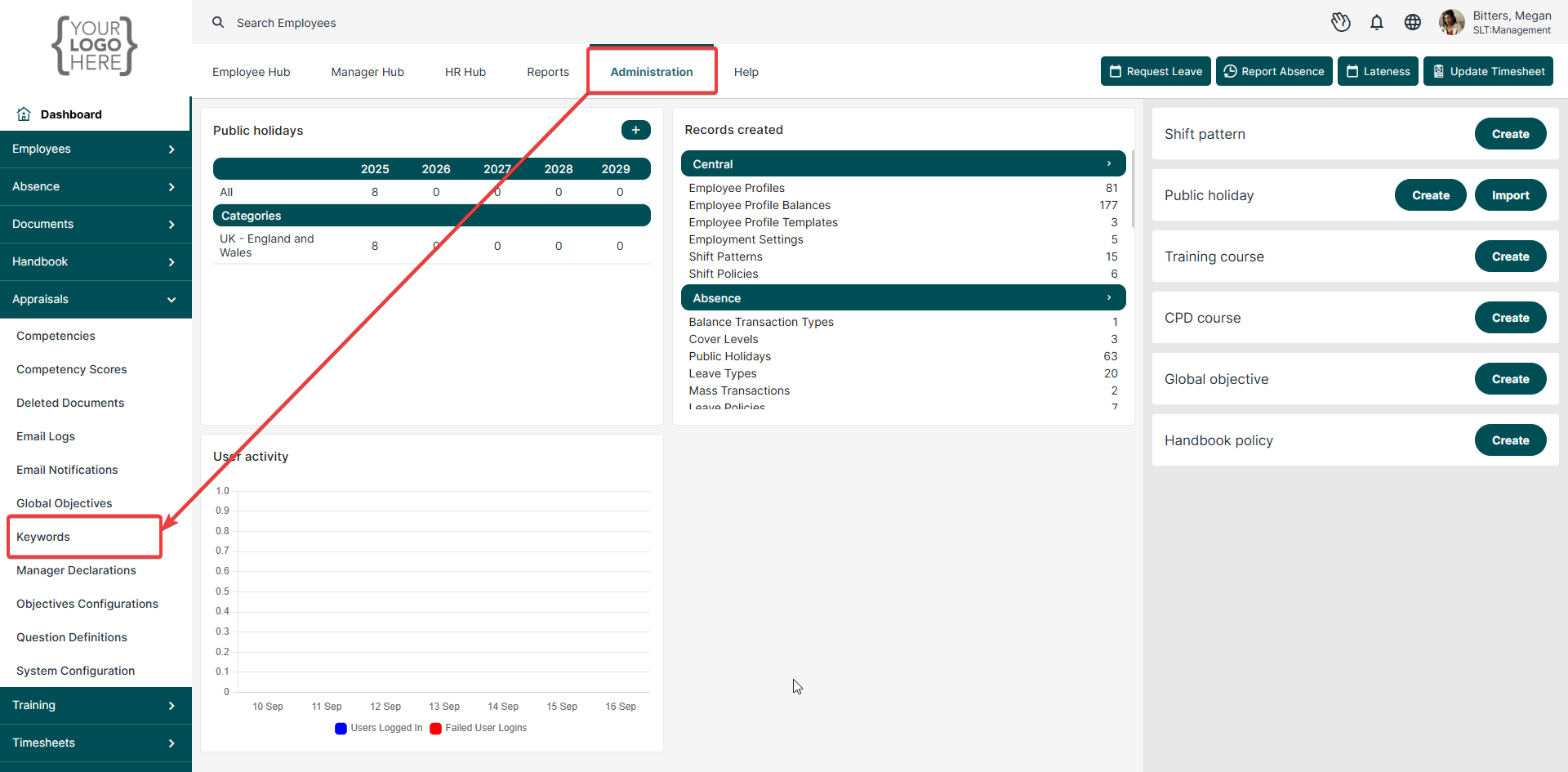
- Go to Administration
- Click on the Appraisals menu to the left
- Select Keywords
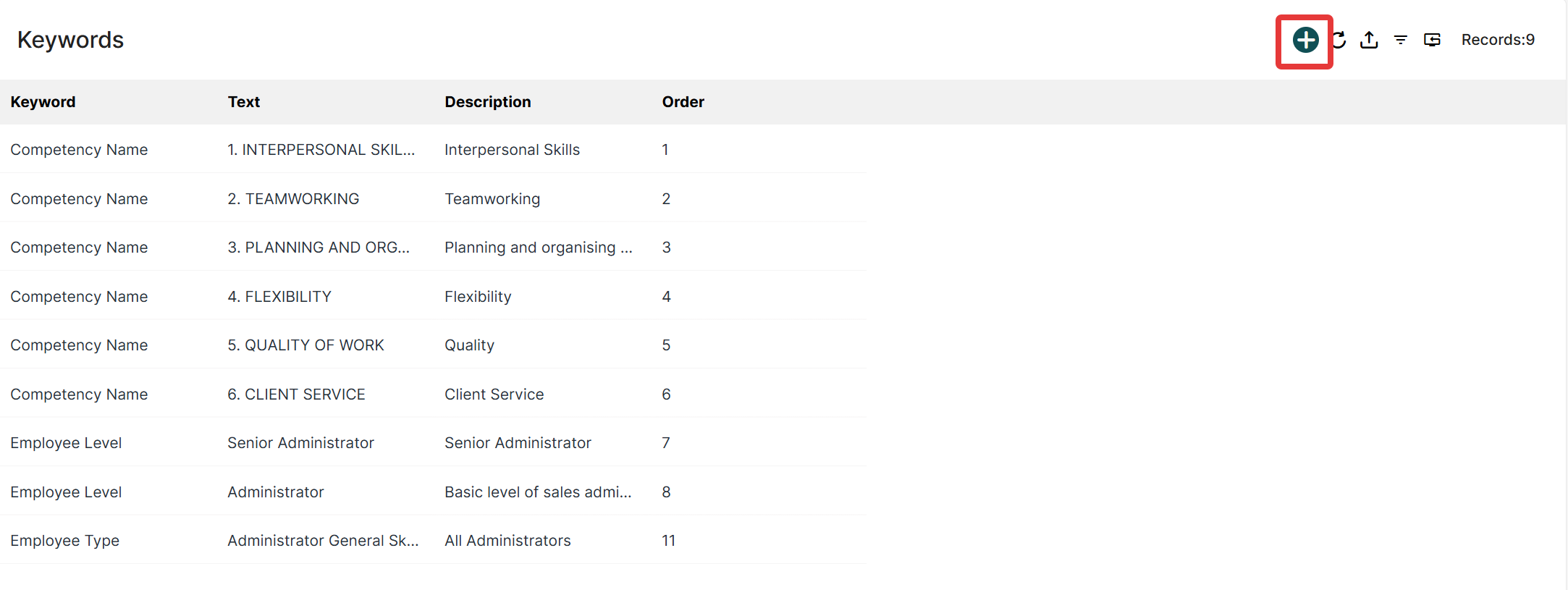
- Click on the (+) icon in the top right corner
- From the drop-down, select the type of keyword to create
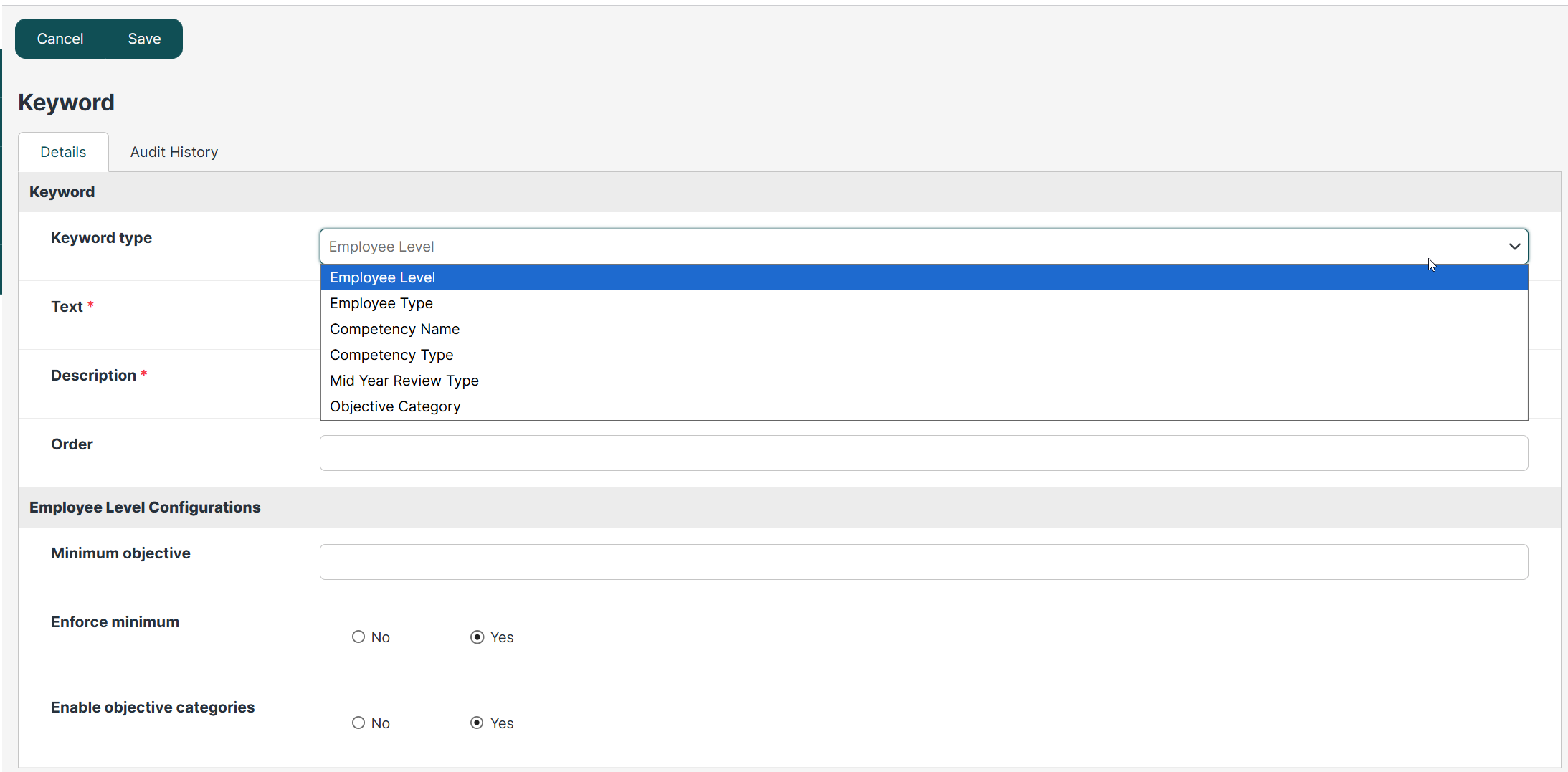
Specifying the order of the keywords is strictly for how they appear within the Administration view list; the exception to this rule are the Competency Keywords.
Using Keywords
Employee Types & Levels
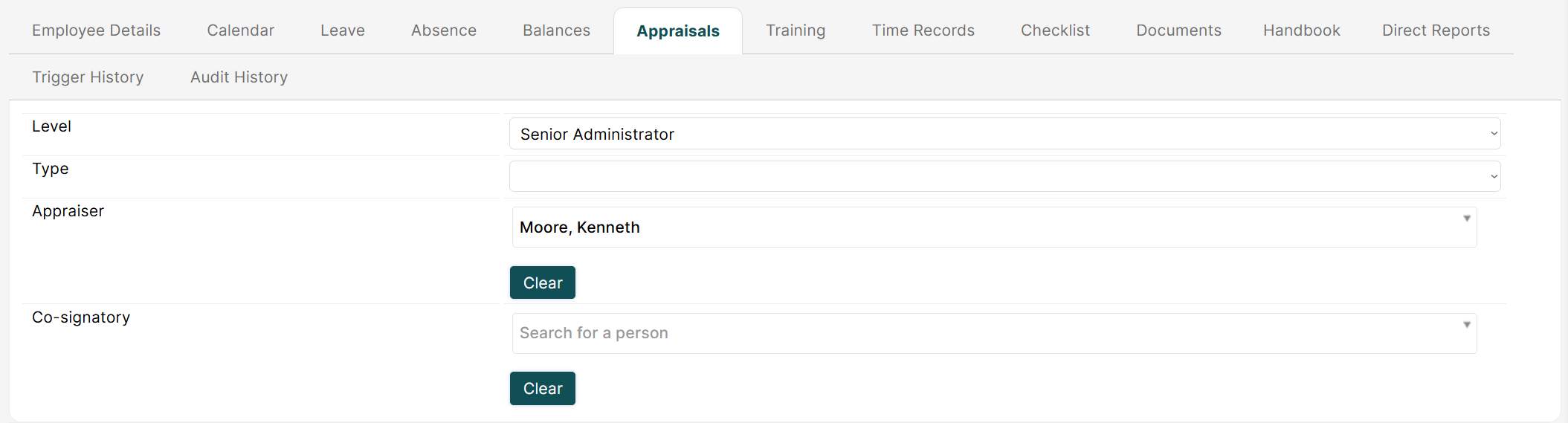
- Open the Employee Record
- Select the Appraisals tab
- Choose your pre-defined Employee Type/Employee Level from the drop-down
- Save the Employee Record to apply
Mid Year Review Types
When creating Question Definitions for your Interim Reviews, a Mid Year Review Type is chosen at the bottom of the question definition form: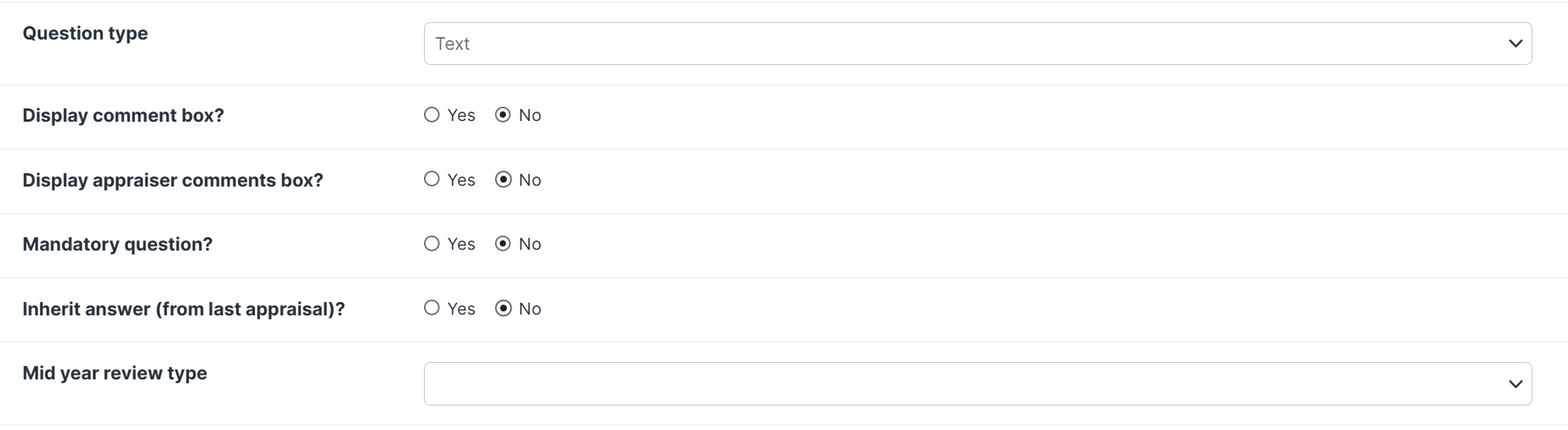
Objective Categories
Pre-defined Objective Categories become available on the Create New Objective dialog when an employee adds an objective from the dashboard, or when an objective is created during the appraisal process: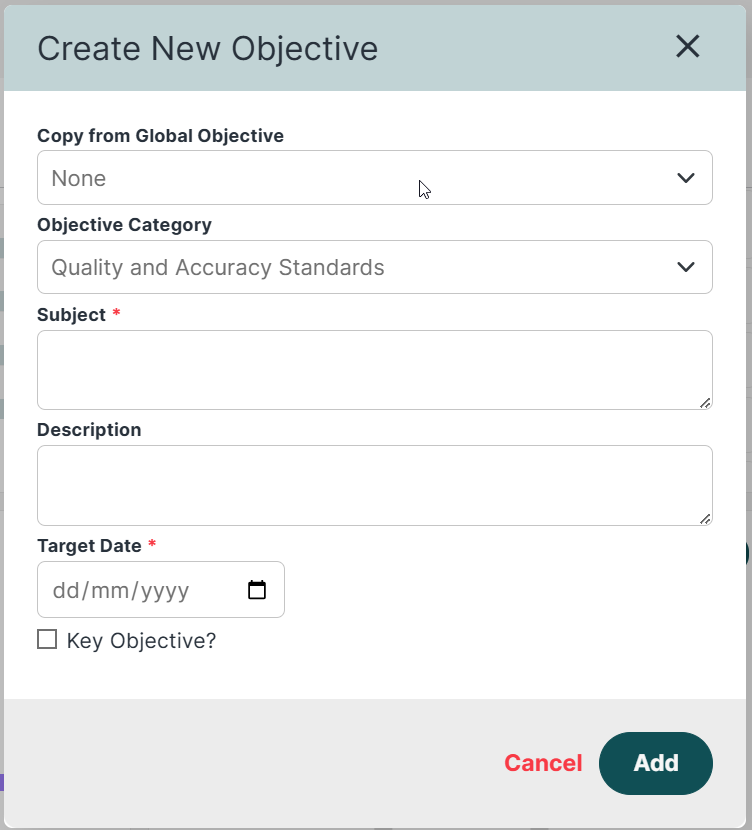
Was this article helpful?
That’s Great!
Thank you for your feedback
Sorry! We couldn't be helpful
Thank you for your feedback
Feedback sent
We appreciate your effort and will try to fix the article